n8n Error Trigger & Error Workflow: Get Notified the Moment a Workflow Fails
n8n has a built-in way to catch failures: the Error Trigger node plus a per-workflow Error Workflow setting. Build it once, assign it in Settings → Error Workflow, and every workflow that throws an error reports itself, no more finding out from your client.
What you'll learn
- What the n8n Error Trigger node does and how it differs from the Error Workflow setting
- How to build one reusable error workflow for your whole instance
- How to assign it via ⋯ → Settings → Error Workflow (the step most people miss)
- What the Error Trigger cannot catch, and why that gap matters
- How to pair it with heartbeat monitoring so missed runs alert you too
The problem: silent failures find you last
If you run automations for clients, the worst way to learn a workflow broke is a message asking why the leads stopped syncing. By then it's been failing for days. You shouldn't have to babysit the executions list of every workflow to know something went wrong.
n8n ships with a fix for the most common case, a node that runs only when another workflow fails: the Error Trigger.
Error Trigger vs. Error Workflow: two halves of the same feature
These two terms get used interchangeably, but they're different things that work together:
Error Trigger (the node)
A trigger node you drop into a workflow. It fires when another workflow errors out and hands you a payload describing the failure: which workflow, which node, the error message, and a link to the execution.
Error Workflow (the setting)
A per-workflow setting under Settings → Error Workflow. It tells n8n which workflow to run when this one fails. The workflow you point it at is the one that starts with an Error Trigger node.
In short: build one workflow that starts with an Error Trigger, then in every workflow you care about, select it as the Error Workflow. That's the part people forget, the node alone does nothing until a workflow is pointed at it.
Step 1: Build a reusable error workflow
Create a new workflow and add the Error Trigger node as the start. Then add a notification node, Slack, Email, Microsoft Teams, Discord, whatever your team actually reads. You only build this once for the whole instance.
The Error Trigger gives you a rich payload. A few of the most useful fields:
Build a useful alert message
Don't just send "a workflow failed." Include the workflow name, the failing node, the error message, and a direct link to the execution so you can jump straight to the input data that broke it:
Step 2: Assign it in Settings → Error Workflow
This is the step that's easy to miss. Open the workflow you want to watch, then:
- Click the ⋯ menu in the top-right of the canvas.
- Choose Settings.
- Under Error Workflow (to notify when this one errors), select your error workflow.
- Click Save.
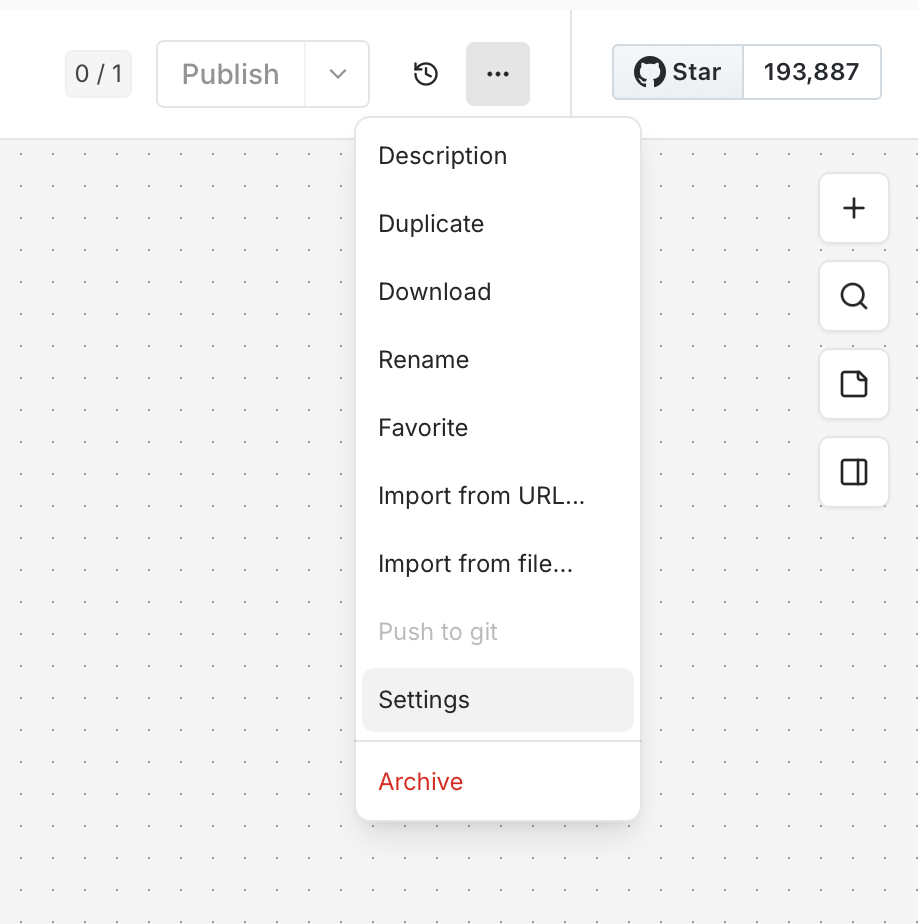
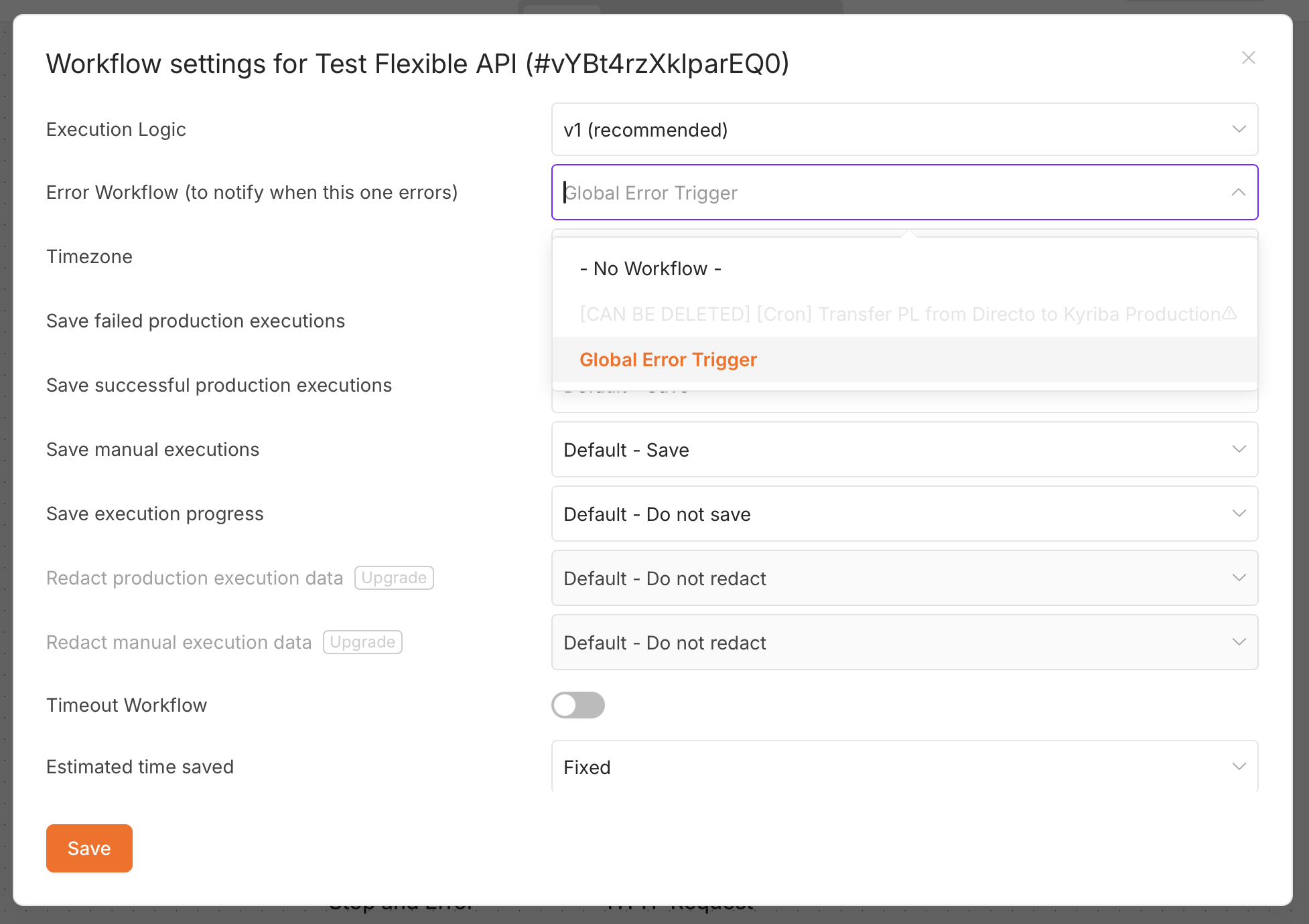
⚠️ It's per workflow. The Error Workflow setting is configured on each workflow individually, there's no single switch that covers everything. Make assigning it part of your "ship a new workflow" checklist so nothing goes live unwatched.
The catch: an Error Trigger can't fire for a run that never happened
Here's the limitation that surprises people. The Error Trigger only runs when a workflow executes and throws an error. That covers a huge class of problems, a broken expression, a 500 from an API, an auth token that expired. But it is structurally blind to the failures where nothing runs at all:
- The schedule trigger silently stops firing, so the workflow never starts.
- The n8n instance is down, out of disk, or the queue worker died, no execution, no error.
- A webhook upstream stops sending, so your workflow is simply never invoked.
- The workflow runs "successfully" but processed 0 rows, n8n sees success, you see a silent data loss.
A run that never starts can't throw an error, so your error workflow never fires. That's not a bug in n8n, it's the nature of error handling: absence of a run is invisible from the inside. For more on the trade-offs of each trigger type, see cron vs. webhooks vs. event-driven reliability.
Close the gap: error workflow + heartbeat monitoring
The complete picture takes two layers:
Inside n8n: the Error Trigger
Catches runs that started and failed. Fast, free, native. Keep using it, it's the right tool for thrown errors.
Outside n8n: a heartbeat
Catches runs that should have happened and didn't. An external Dead Man's Switch expects a check-in on schedule and alerts when it's overdue. Absence becomes the signal.
With watchflow's native n8n node, this is two drops: a Report a failed run node in your global error workflow, and a Report a successful run node at the end of each workflow you watch. If the success heartbeat doesn't arrive within the interval + grace period, you get an alert, even though n8n never threw an error.
Report the failure from your error workflow
Add this as the final step of your Error Trigger workflow (or use the native node) to log every failure centrally:
Prove the run actually finished
And this as the last node of each watched workflow, so a missing heartbeat tells you a run went silent:
📚 Full walkthrough: the n8n Workflow Monitoring use case has the complete setup with the native node, custom properties, and templates.
Conclusion
The n8n Error Trigger plus a per-workflow Error Workflow is the right first move, build one error workflow, assign it in Settings → Error Workflow, and you'll hear about thrown errors the moment they happen. Just remember its blind spot: it can only fire for runs that actually execute. The failures that hurt most, the schedule that quietly died, the sync that returned zero rows, need a heartbeat watching from the outside.
Catch the errors n8n throws, and the runs it never even starts.
Protect your most critical workflow free, forever, 3 heartbeats, missed-run and silent-failure alerts, and the native n8n node. No credit card.